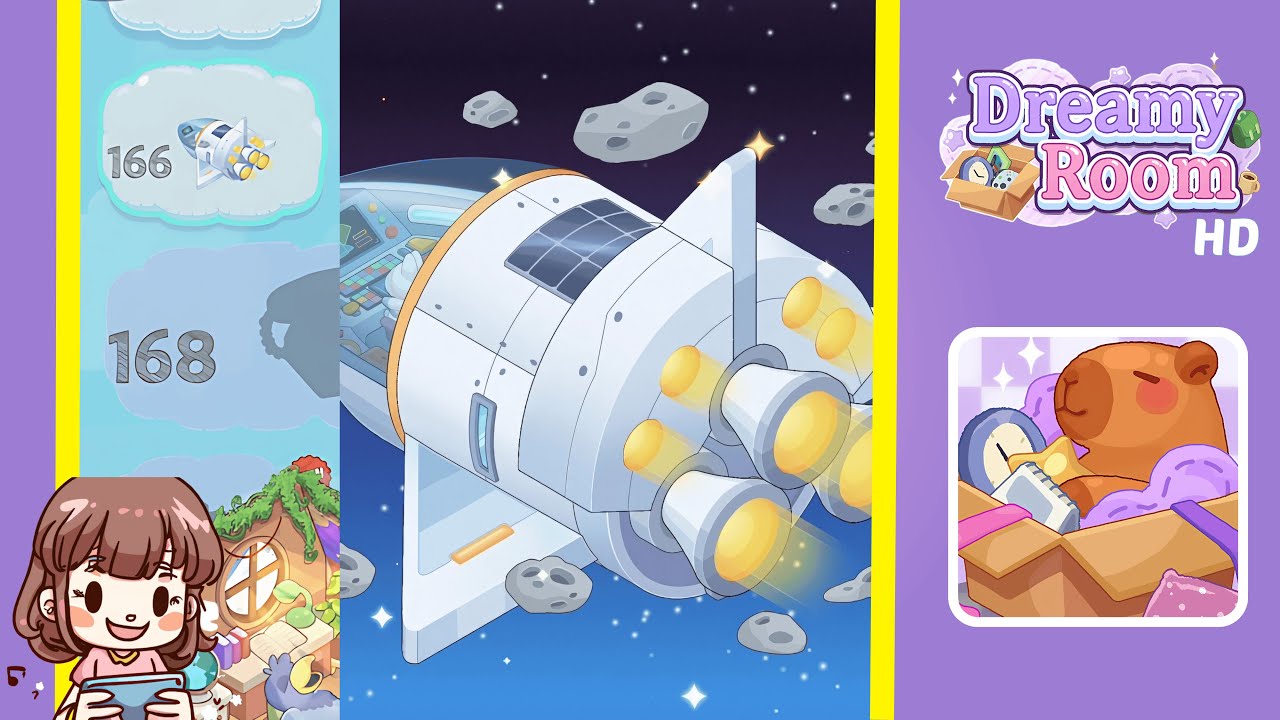
Dreamy Room Level 166 Walkthrough
Below is a comprehensive walkthrough for Dreamy Room Level 166, guiding you step by step to transform the empty shell into a fully decorated space. As described by the Dreamy Room narrative, Dreamy Room is more than a game; it’s a heartfelt journey that reminds us of the beauty in life’s quiet moments.
Step-by-Step Guide
- Place the floor panels in the center of the hull. Begin the level by selecting the four tan walkway panels from your inventory. Carefully position the first triangular panel to align with the curved entrance’s center. Attach the second panel end-to-end behind the first, ensuring the edges meet without any gap. Continue by placing the third and fourth tan panels to form a continuous path leading toward the control console, ensuring perfect alignment as it is crucial for further progress.
- Install the rear hull segment behind the walkway. Shift your attention to the structural frame and find a large curved rear hull segment in your inventory. Drag and align the flat base of this panel to the back edge of the second floor panel, ensuring it sits flush with the room’s curvature. Rotate the panel until its grooves lock perfectly into place, creating a seamless arch above the walkway. Verify alignment from multiple angles to ensure proper placement as this is critical for subsequent steps.
- Attach the bunk bed and ladder on the right wall. Locate a two-tier bunk bed with pastel pink and blue mattresses in your decor menu. Drag the bunk bed to the right curved wall, aligning its back frame with the hull arch. Snap the golden ladder onto the side rungs to allow access to the upper bunk. Proper alignment is essential to unlock the next interior decor set.
- Place the medical cabinet and water supplies on the left side. Access a compact medical cabinet and water canisters in your inventory. Align the medical cabinet with the floor panels on the left wall, ensuring interactive shelves face inward. Place water canisters on the cabinet’s lower shelf slots. Ensure symmetry and accessibility as this is vital for smooth interaction and animation.
- Set up the control console and position the rabbit bot. Select the control console module and place it in line with the walkway you created in Step 1, aligning its base at the junction of the third floor panel. Slight rotations may be required to ensure controls face the walkway. Finally, position the rabbit maintenance bot in front of the console’s control panel.
- Add the oxygen tanks beside the console. Find two tall oxygen tanks and rotate them so their valve tops face the walkway. Position the tanks side by side on the right edge of the floor panels next to the console. Check for alignment to ensure interactive effects trigger correctly.
- Arrange the desk, monitor screen, and swivel stool. Select the desk unit and place it along the right curved wall, aligning it with the hull segment above the bunk bed. Anchor the floating monitor screen above the desk, ensuring it hovers at eye level. Position the purple swivel stool in front of the desk to maintain accessibility and a harmonious layout.
- Position the cargo crates and waste bin near the entrance. Drag three stacked cargo crates to the left side of the entrance floor panel, aligning them in a stair-like formation. Place the waste bin near the desk’s right corner to complete the decor without blocking walkways.
Notes & Precautions
- Alignment is crucial. Misalignment can prevent objects from being placed correctly.
- Place structural pieces before decorative objects. Skipping sequence might reset progress.
- Avoid collision zones. Check and clear overlapping placements to ensure functionality.
Tips & Tricks
- Use grid snapping for precision. This ensures alignment without manual adjustments.
- Rotate objects in small increments for a clean layout.
- Utilize preview mode to adjust heights and depths for maximum visual impact.
- Work from back to front to maintain a smooth decor flow.
- Save often to prevent progress loss in case of mistakes.