Level walkthrough
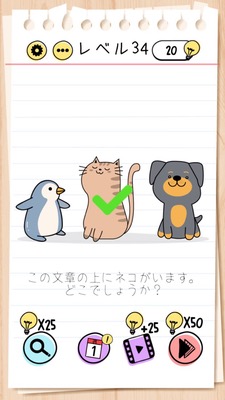
Brain Test Level 34 Walkthrough: Move the text downwards
Brain Test Level 34 Walkthrough: Move the text downwards
Complete Strategy Guide・Step-by-Step Instructions・Common Mistakes
🧩 Level Information
- Level Number: 34
- Description: Move the text downwards
- Difficulty: Easy - Riddle type
🎯 Objective
Drag the text "Move the text downwards" displayed on the screen downwards with your finger.
📝 Steps to Solve
- Carefully check the text "Move the text downwards" in the middle (or top) of the screen.
- Ignore any text input fields or buttons, do not press anything, and focus on the text itself.
- Long press with your finger somewhere on the "Move the text downwards" text (on or beside the text) to grab it.
- Without releasing your finger, slowly drag it downwards on the screen.
- Once the text moves down with you, release your finger to drop it at an appropriate position.
- If the text has moved down, the stage is cleared.
💡 Hints
- Hint 1: This is not a problem where you input something or press a button. Try manipulating the "appearance" of the screen.
- Hint 2: Touch the "text" itself, not the "instruction" to "move the text downwards."
- Hint 3: Grab the text with your finger and swipe (drag) it down. The letters will move with you.
🧠 Explanation and Points
This level is a trick puzzle where you don't execute the instructions as they are but interpret the words "move the text downwards" literally. Many players try common actions like "scrolling down", "writing something in the input field", or "pressing a button", but the correct answer is to drag the text object itself downwards. This is a problem that encourages you to think outside the box and see that even UI text labels can be moved as objects, making it a "manipulate the screen itself" type riddle that Brain Test is known for. It is a perfect level to get used to treating the explanation text as part of the puzzle, which is a signature of the series.
🔍 Common Mistakes
- Trying to scroll down the screen.
- If there is a text input field, trying to type "Move the text downwards" there.
- If there is a button, repeatedly tapping it waiting for a reaction.
- Quickly tapping only a portion of the text, leading to giving up since it does not result in a drag operation.
- Opening a different screen like settings menu or help.
🎉 Advice After Clearing
If you realize "That text could be moved!", that's okay. In the future, there will be more situations where you move or combine problem statements or the UI itself. Make it a habit to "touch everything" displayed.