Brain Test Level 328 Walkthrough: Move and Press the Jump Button
Brain Test Level 328 Walkthrough: Move and Press the Jump Button
Complete Strategy & Step-by-Step Explanation & Common Mistakes
🧩 Level Info
- Level Number: 328
- Question: Swipe the Jump Button Upwards and Press it
- Difficulty: Medium
🎯 Objective
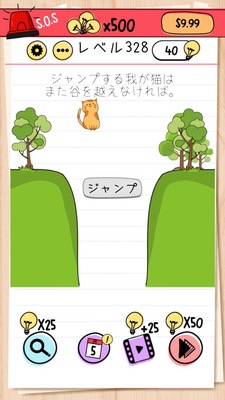
Swipe the Jump Button located at the bottom of the screen upwards, and then tap the Jump Button to complete the action as described in the question.
📝 Steps to Solve
- Find the "Jump" button located at the bottom of the screen (usually towards the bottom right).
- Without tapping the jump button with your finger, swipe and drag the button itself upwards.
- Slide and place the jump button a bit higher (around the middle area).
- Tap the moved jump button once with your finger to press it.
- The operation, as directed by "Swipe the Jump Button Upwards and Press it," is completed, and the stage is cleared.
💡 Hints
- Focus on the "Jump Button" itself, rather than the character on the screen or other objects.
- The Jump Button is not fixed and might be movable by dragging with your finger.
- First, try swiping the Jump Button upwards to move it, then try tapping it again to press.
🧠 Explanation & Key Points
The trick of this stage is the fact that the question itself is the answer, and players tend to have the preconception that the "button is fixed." Many players attempt to make the character jump or try swiping a different object upwards, but what needs to be moved in this question is the UI element, the "Jump Button" itself. Drag (swipe) the button upwards, and then press the button again to make the game recognize the proper action as per the text and clear the stage. It is a level that demands the typical Brain Test mindset switch: "Anything on the screen, including the UI, might be movable."
🔍 Common Mistakes
- Trying to swipe the character upwards to make it jump.
- Trying to clear the stage just by repeatedly tapping the Jump Button.
- Accidentally swiping another button at the top of the screen (e.g., settings).
- Trying only to move other objects (like clouds or platforms) without swiping the Jump Button.
- Swiping the Jump Button sideways and not realizing it can be moved upwards.
🎉 Advice After Clearing
This stage teaches you that buttons can also be treated as objects that can be moved freely. In the future, don’t assume "because it’s UI, it won’t move" and try dragging it instead, as this mindset can be useful.